Something suddenly changed on my Ipad. When I press the options button on my project. I get a map instead of the usual options. Also, when I press the compass icon I get a map instead of the normal options. Why is happening. Are those functions not available anymore?
When was your last update? Which version do you use? Which kind of map it is (Online Map or Offline Map / Map from Map control in classic)? By the way: Build 1.0.600 (and some temporary versions before) have some changes in options etc. This versions could only be installed over apk-file for ANDROID. And your described behavior does not show the changes like in my ANDROID devices.
My last update must have been today. It somehow happened without my decission. I am using it on an iPad and my version isss 1.0.602. I dont quite understan what you meanby map control . Where is it?
Hello again
I am starting to get my head around this now. It is cleare that this IOS version (1.0.602) is very different. It has a much more modern look. It will take me soe getting used to.
You are in classic support section. In classic project you can create vitual maps and show it in a screen with map control… But I will ask you in different way: what kind of map you’ll see? Is it the same like over down button “Map” and is it an online map (GPS and Wifi or Mobile data on) - looks like Open Street Map? Or is it a self created offline map like in Map View of Cybertracker desktop software?
I do not have apple devices but it seems like new look and feel Justin created last time…
Yes, that’s right. Parts of Classic have been modernized with 602. We have not rolled out on Android yet.
Eren, please let me know if you see anything that is not working. It should be a big improvement as this means that Classic users get access to modern mapping, edit and delete.
I am still working through the different functions however, there seems to be one major glitch. On my iPad (using version 1.0.602, the “layers” (modern looking maps) accessed from the GPS button, do no update when I republish after editing the Field Maps on the desktop. The list of . layers shown only include the maps that were in when the app is fist published on the server even though the main screens of project have updated. In contrast to this, the list of maps on my Android phone update in both the main screens and in the lists that appear one pressing the GPS button and the maps tab. The screenshots below illustrate this.
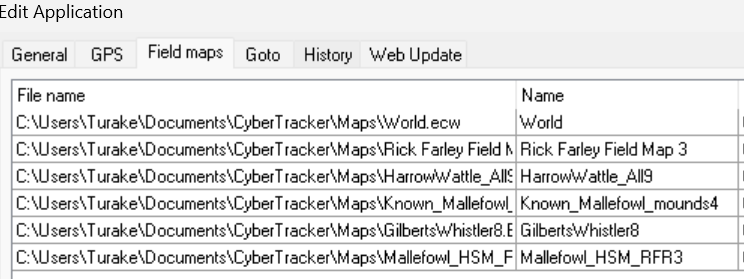
Here is the latest list of maps from my Desktop. The map at the bottom of this list (Malleefowl_HM_RFR3) is map that I added just before I last published.
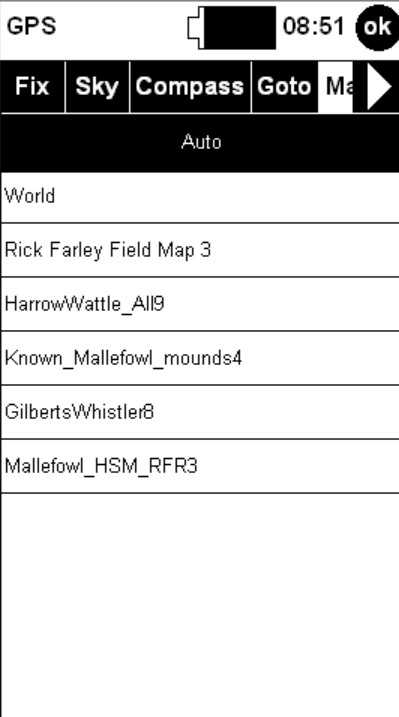
When I update the project on my Android and press the GPS button and select map, this map appears on the list
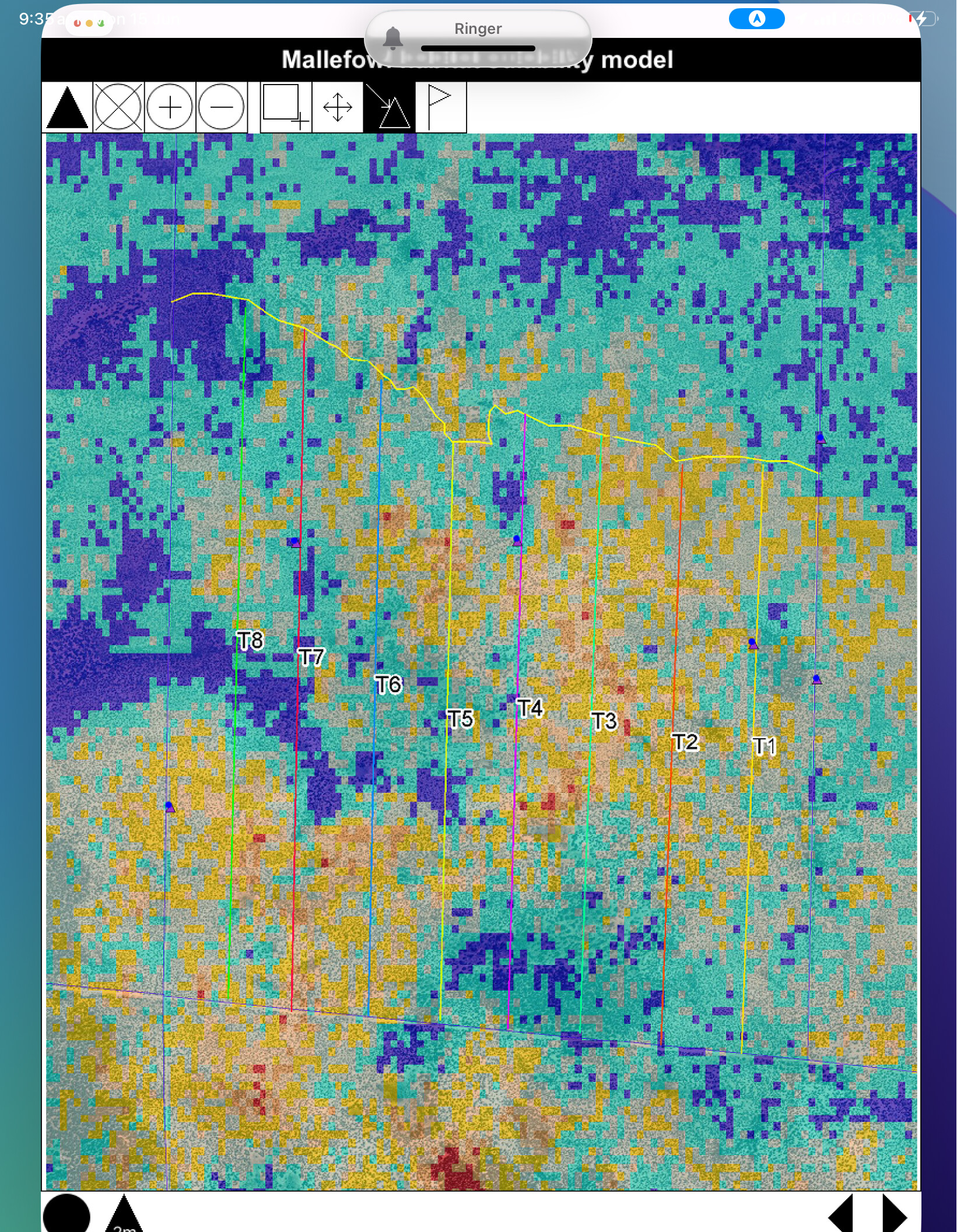
When I click on this, I can see exactly same map (see below) as the one I see when I select the field map screen from the main screens and in the old format.
When I update the project on my iPad, also this new map is added to the mains screens of the project in the old map format
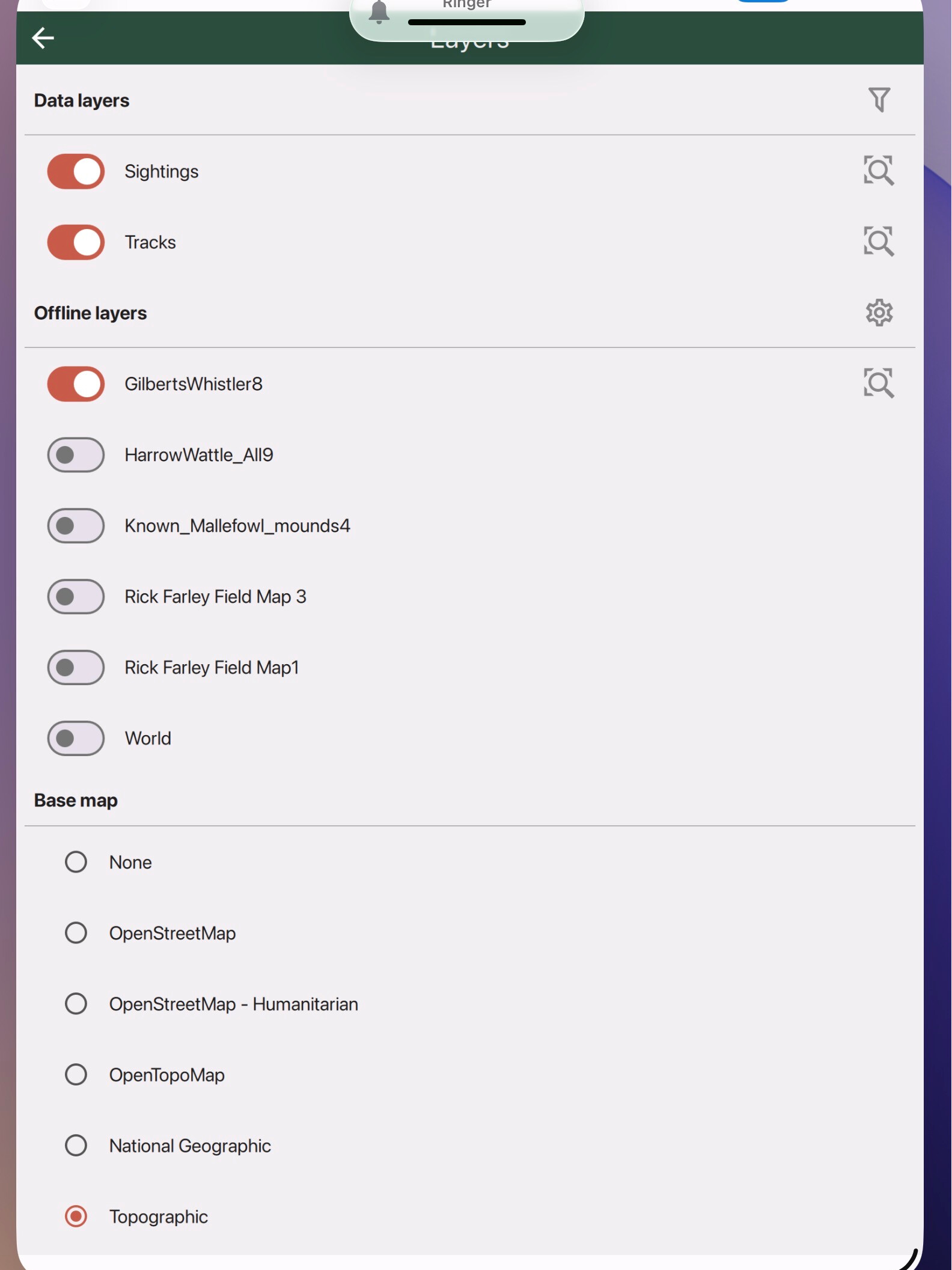
However, when I press the GPS button, and select layers, this map does not appear on the list (see below) which means that I cannot access the modern look map on my iPad.
Hi Eren,
This issue will be fixed in the next build. In the meantime, if you remove the project and reinstall it, then it should give you all the maps.
Thanks for the report.
-Justin
Thanks Justin
I did this and the missing map was added to the layers but all the previous maps were alse kept so the maps that are in both versions are duplicated. This suggests that the layers option (from the GPS) is accessing all maps in CyberTracker’s memory. This is supported by the fact that when I added to my iPad, another project which has a very large number of maps, all the maps of both projects appeared under layers reagardless of which project I am in. Further, all the maps that I previously had in the second project (including various verions of the same map) are also listed as layers. A result, currently 68 maps appear under layers.
Regards
Eren
The fix will be in build 603, coming out in the next few days.
That’s great. One more question. Two map functions that we have been using extensively are the select / inspect functions (from the toolbar accessed from the GPS button). Are those available in the 1.0.602 version?
603 is now live on iOS and Android. Please let me know if this resolves your issue.
Yes, select and inspect work.
Hi Justin
I updated to 603 on my iPad but the problem persists. I checked by installing three projectss and deleting two of these in turn. The “layers” list shows all the field maps for all thre projects and these remained even after I deleted two of the projects.
This seemst to be the default. Are there any controls in 603 that would allow the user to filter the layers so that only layers for the active (or specifiied ) project are displayed?
Also I cannot not work out how to perform the select /inspect functions in 603. Which buttons do I use?
I have also just tried 603 on my Android phone. The situation is the same. All the maps in all the projects are include in the list of layers regardless of which project is active.
Hi Eren,
That’s right, that is how things are designed right now. The field maps are global and must be uninstalled manually.
The change in 603 was to address the multiple copies of maps showing up in the list.
Could you please say more about how you use the maps in your scenario?
Just tapping a sighting will bring up the Inspect page.
Cheers,
-Justin
How can I manually uninstall the field maps?
As for your question, in that scenario, the map would contain sightings that were 1) previously made using cybertracker and/or 2) extracted from different data bases and included into a history file. One use (probably th most common) is when I am in the field and can see from the map that there are previous records along the routes that I am walking /surveying. Using the GPS button, the maps tab and the i button I can select one or more of the records and then go o the Inspect tab and look at the details of all the records. The great thing about this function is that even if I select quite a few records I can just scroll through them using the forward arrow. This is a great way to check which species were recorded from a give area and when. It is particularly useful in community based monitoring especially with Indigenous communities who are really interested ingetting a quick over view of which species were recorded in the place that are important to them while they are in the field and visiting those places.
Hi Eren,
From the Layers page, there is a gear icon next to the “Offline layers” section. Also, if you go to the Settings page, there is an “Offline maps” option.
On Classic, the “i” mode let you draw a rectangle around a region and all the points in the rectangle would show up in the inspector. Now, tapping will get you all sightings within a radius of the tap. If you are zoomed out, then you will get all the History items. The History items are also available as a tab on the Options screen.
Will this work for you?
Hi Justin
Yes this is great.
I could could not work out the gear icon you mentioned but this is not a big deal. The other option works.
It would be good, in the future, if the map function could allow just viewing project-specific layers when one is in that project (as was the case in the earlier versions ). This would allow multiple projects to installed on a device and used when needed, without having to delete multiple maps and then re-install projects. However the the current work around is OK.
1 Like
Hi Eren, yes, I think this is a more flexible design. I will add this to the list. Thanks!