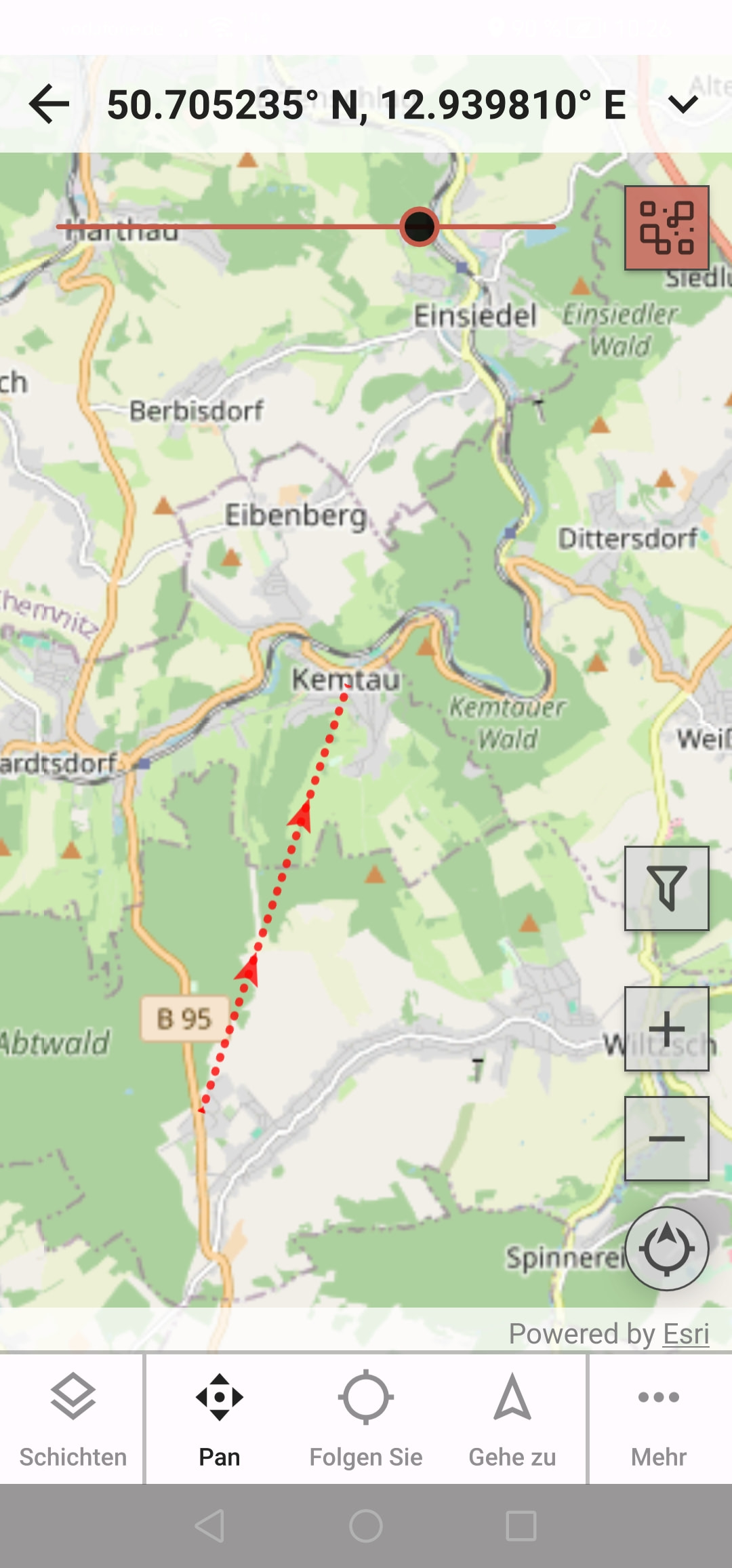
CT 3.537 / 1.0.607 / Android 12: Although the “Timer Tracks visible” setting is enabled in the Field Map Control, the timer track is no longer displayed on the device’s field map. The track is displayed correctly in the app’s map tab. After transferring the data, the track also appears in CT Desktop.
Furthermore: When I delete all project’s sightings via “Options”, the track remains in the app’s map tab indefinitely. How can I delete it?
Does this only happen with my projects, or is anyone else having this problem?
Hi Holger,
I think the tracks on the old field map might not have made it. How do you use this?
To clear out the running track, you will need to reset the project. Long press on it and then select Reset.
Cheers,
-Justin
Dear Justin, I’m not sure if I’ve understood you correctly. I thought tracks used to be visible in FieldMap? But perhaps I’m mistaken.
Use cases:
a) Tracking an animal. However, this project is not currently in use.
b) Archaeologists systematically survey an area using a grid pattern and want to see exactly what they have covered. This project is active, and we are currently switching to the new version (1.0.607) of the app. A (secondary) requirement here is that the project must be as easy as possible for the end user to operate.
The new map view is great so far, but a major drawback is that you have to exit the “Classic” project to access the map.
Is it correct that a project’s tracks are normally deleted once the project data has been successfully transferred?
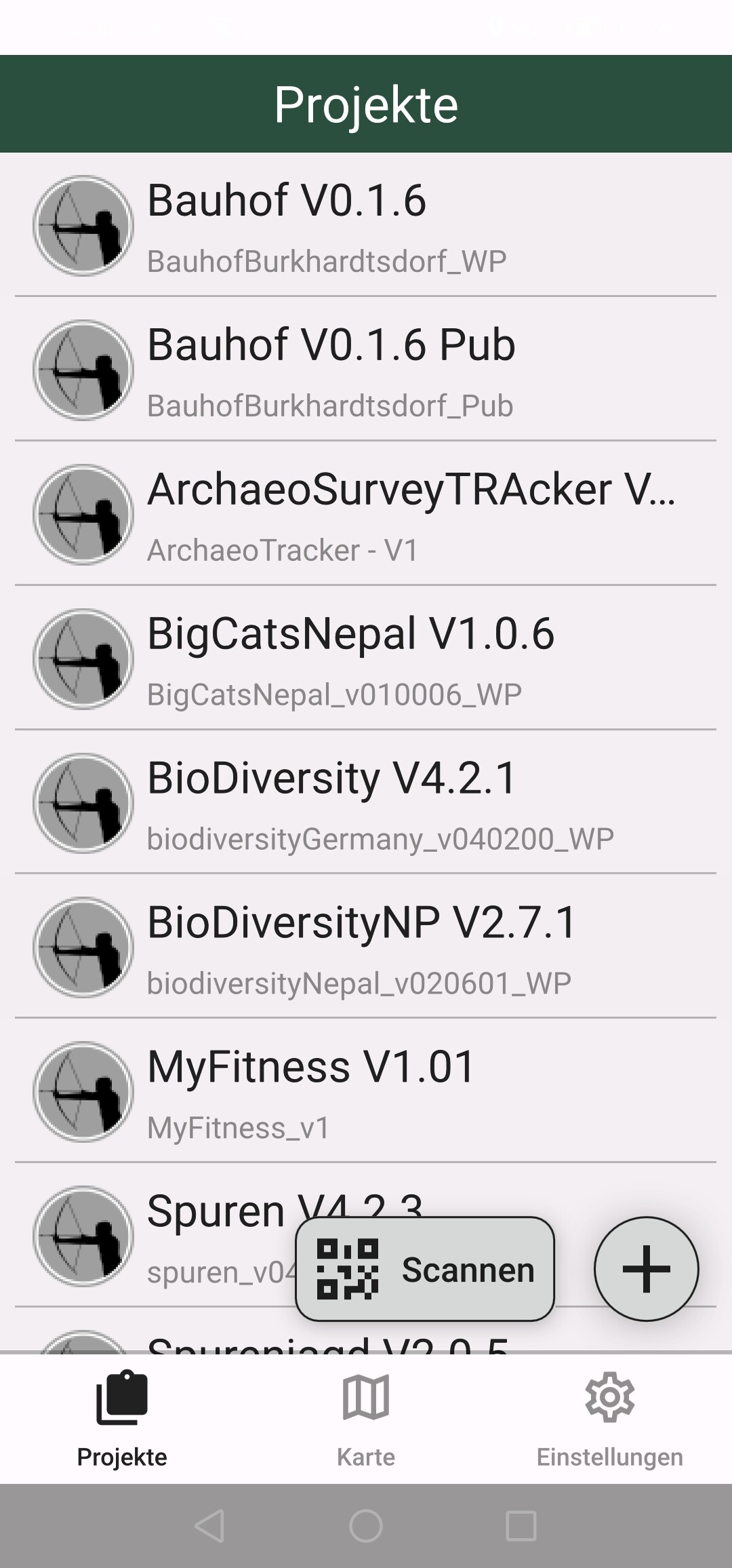
Resetting a project is fine. However, what happens if you have multiple projects on the smartphone at the same time?
In my example: I reset the “Status and Data” for all projects (see screenshots), yet one track remains. The upload queue is empty.
Hi Holger,
Okay, I will look at re-adding the tracks to the field map control.
You will have to reset each project individually.
The tracks are uploaded along with data, then they are removed from the device.
The red line is not a track timer, that is a Goto point. Tap the “…” in the bottom right corner of the map screen, and hit “Navigation”, then tap “Stop”.
Cheers,
-Justin
Thanks Justin, is there anywhere a documentation of this map features?
ok, I see. I was searchin in all parts of WikI but I did not found yet. 
By the way: Will be an future add on in classic to access the online/offline Map of the App from inside the project? Or is this not possible to develop?
I think the vote for the Classic offline maps is that they are per-project, because they can be configured from Classic desktop.
There is an issue right now where you cannot load ECW files as an offline map zip, but we will fix that soon.
Cheers,
-Justin
sorry Justin… misunderstanding. What I’m asking for … When I’m inside a classic project and want to see the CT-App Map Page …
… I have to leave the classic project. My question was if it would be possible to access this map tool in the picture above via push a new button and come back.
Hi Holger,
I am not following. This page comes up when you press the GPS page button on the Navigator control. Or you can drop a GPS control onto a page directly.
Cheers,
-Justin
Justin, I did not know this, sorry. When I push the GPS on Navigator, the online map opens correctly. This feature I did not explore yet .